Edit Client Profile Details
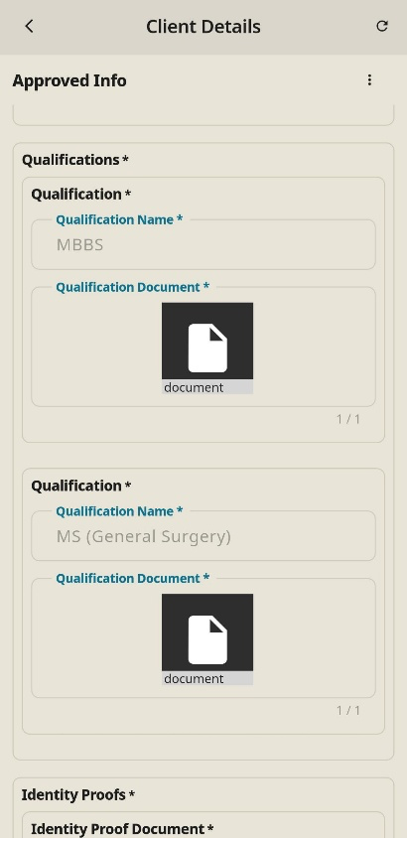
To update/edit any pre-entered information about the client profile like contact details, or business proof documents, you need to follow the steps below and resubmit them for approval.
Step 1: Access Client Profile Details
- On the Home Screen, tap the Profile icon under the Manage section.
- In the Client Profile screen, tap on your main Client card.
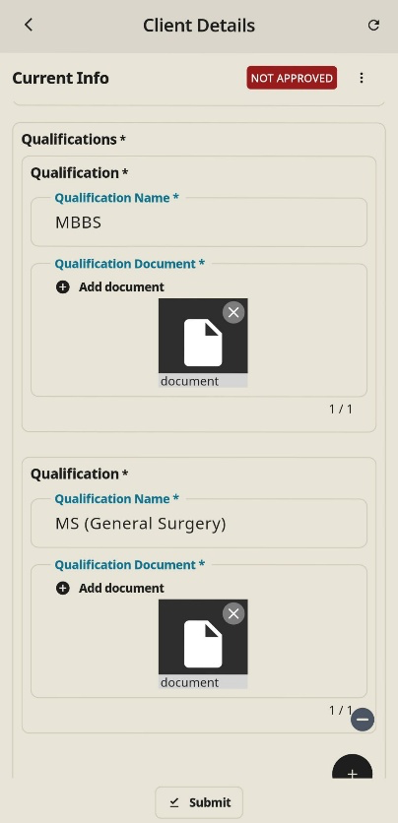
Step 2: Update Information & Submit
- Modify any fields that need updating:
- Basic Info: Name, Avatar image, and Email address.
- Contact Numbers: Mobile Number (with country code).
- About Yourself: Description or bio text.
- Documents: Identity Proof Documents (e.g., Registration Certificate) and Business Proof Documents (e.g., GST Certification).
- After making the required changes, tap the Submit button at the bottom of the screen to save your updates.
Step 3: Resubmit for Approval
- Tap the three dots menu icon in the top-right corner of the Client Details screen. 2 Select Send for Approval from the options.
- An Approval ID popup will appear displaying a QR Code and a unique ID string.
- Share with Account Manager:
- Allow your account manager to scan the QR Code directly, OR
- Tap the ID string to copy it and send it to your account manager to complete the verification.
Note
Your updated profile status will display as NOT APPROVED until it is verified and changes are approved.